 Sign in



RealWorld Cursors for Chrome and Firefox
Customize cursors inside your web browser.
RealWorld Cursors is a free Chrome/Firefox extension that replaces the browser's mouse cursors with a cursor of your choice. It pairs with the RealWorld cursor library, where you can replace your cursor with a single click.
To Add RealWorld Cursors to Chrome, go to https://chrome.google.com/webstore/detail/c/clkjbhhgjchkhfabobknmhajgfjmhdcl
To Add RealWorld Cursors to Firefox, go to https://addons.mozilla.org/en-US/firefox/addon/realworld-cursors/
Tip: pin the extension to always see its button on the browser's toolbar and access the configuration quickly.
What it does?
Web browsers define several roles for cursors. This extension focuses on replacing default cursors for the three most often used roles:
- Arrow cursor - the normal pointer over the page
- Hand cursor - the pointing hand over links and buttons
- Text cursor - the beam over selectable text and text fields
Limitations
Replacement of default cursors is not 100% accurate, browsers are able to use context aware cursors (for example use arrow over a heading's bounding box while using the beam cursor over actual letters). This is currently impossible to replicate by just defining custom cursor style for elements on the page.
The page content is dynamic (changing) and a page can define its own cursors. The extension tries to inject the custom cursors "gently" to not disrupt what the web page is intending to do - in some cases you may still see the default cursor over some elements on a web page.
How to use it?
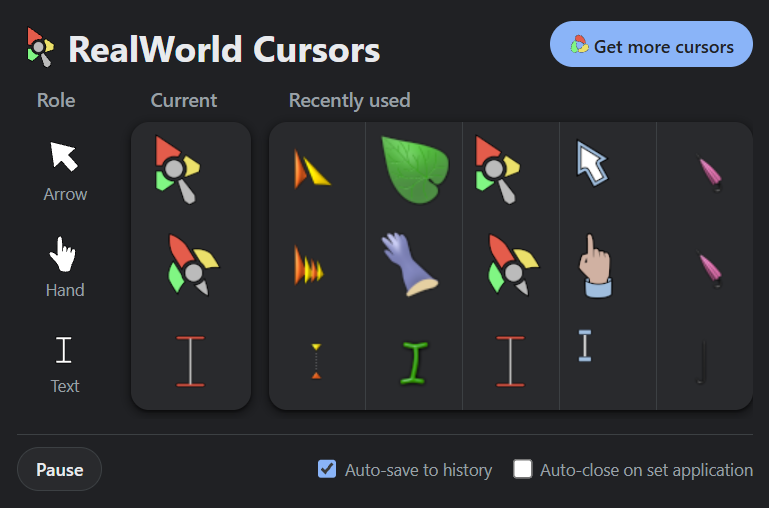
Once you install the extension, the built-in custom cursor should appear. Open the extension configuration window (shown above) to quickly switch to one of recently used schemes (3 initial schemes are available).
To find more cursors, go to the cursor library, locate a set or an individual cursor you like.
- On set pages (if they define all 3 required roles), you will see a "Apply cursor scheme" button in an "Apply scheme" section. Click it and the cursors change instantly.
- On an individual cursor page, there is a "Apply as the" button and an accompanying selection box, where you can select the role to use that cursor for. Select role and click the button to apply the cursor to that role instantly.
Some cursors may not work - browsers may enforce extra limitations. For example some current browsers only support cursors of up to 100x100 pixels in size. If the cursor is bigger, it won't appear. You can use the test area on an individual cursor page to see if the cursor appears - if it works there it should work with the extension.
Advanced controls
The extension automatically saves unique schemes (no cursor must match a cursor already saved) to history - you can disable this behavior by unticking the Auto-save to history checkbox. You can manually save a scheme by clicking on it (under the Current label) in the extension configuration.
You can delete schemes from history by clicking the "x" button that appears when you put your mouse over them.
The Pause button temporarily disables cursor customization. To re-enable it, click on Unpause or select a scheme from the history or using a button in the cursor library.
To use a default cursor for certain role, but not others, hover over it on the "Current" box and click the small "x" button.
The Auto-close on set application option is there for your convenience. If enabled, it closes the configuration window instantly after you select a scheme from the history of after you pause the extension.
Source code
Source code for the extensions is available at https://github.com/vlastaRW/cursors-extension under a GPL license (license applies to the code except the build-in schemes and the main logo image).
 Recent comments